Open Remote Media
Stream video and audio from a URL, WebDAV server, or password-protected source.
If your media file lives on a web server, NAS, or cloud storage, you can stream it in Media Extended without downloading it.
Open a remote URL
- Open the command palette (
Ctrl+P/Cmd+P) and run Open media quick switcher - Paste the full URL into the search field (e.g.
https://example.com/lecture.mp4) - Press
Enter
The file streams directly in a media player tab. Common sources include static file servers, CDNs, and WebDAV services like Nextcloud.
You can also paste the URL as a link in your note and click it to open the player, as long as Handle link to remote media file is enabled in Settings → Community plugins → Media Extended.
[Lecture recording](https://files.example.com/lecture.mp4)Password-protected sources
If the server requires a username and password (HTTP Basic authentication), add the credentials before opening the file.
- Open Settings → Community plugins → Media Extended
- Scroll to the Main daemon section and open the Password manager
- Click Add and enter the domain (e.g.
files.example.com), username, and password - Save and close settings
- Restart Obsidian so the daemon picks up the new credentials
- Open the URL through the media quick switcher
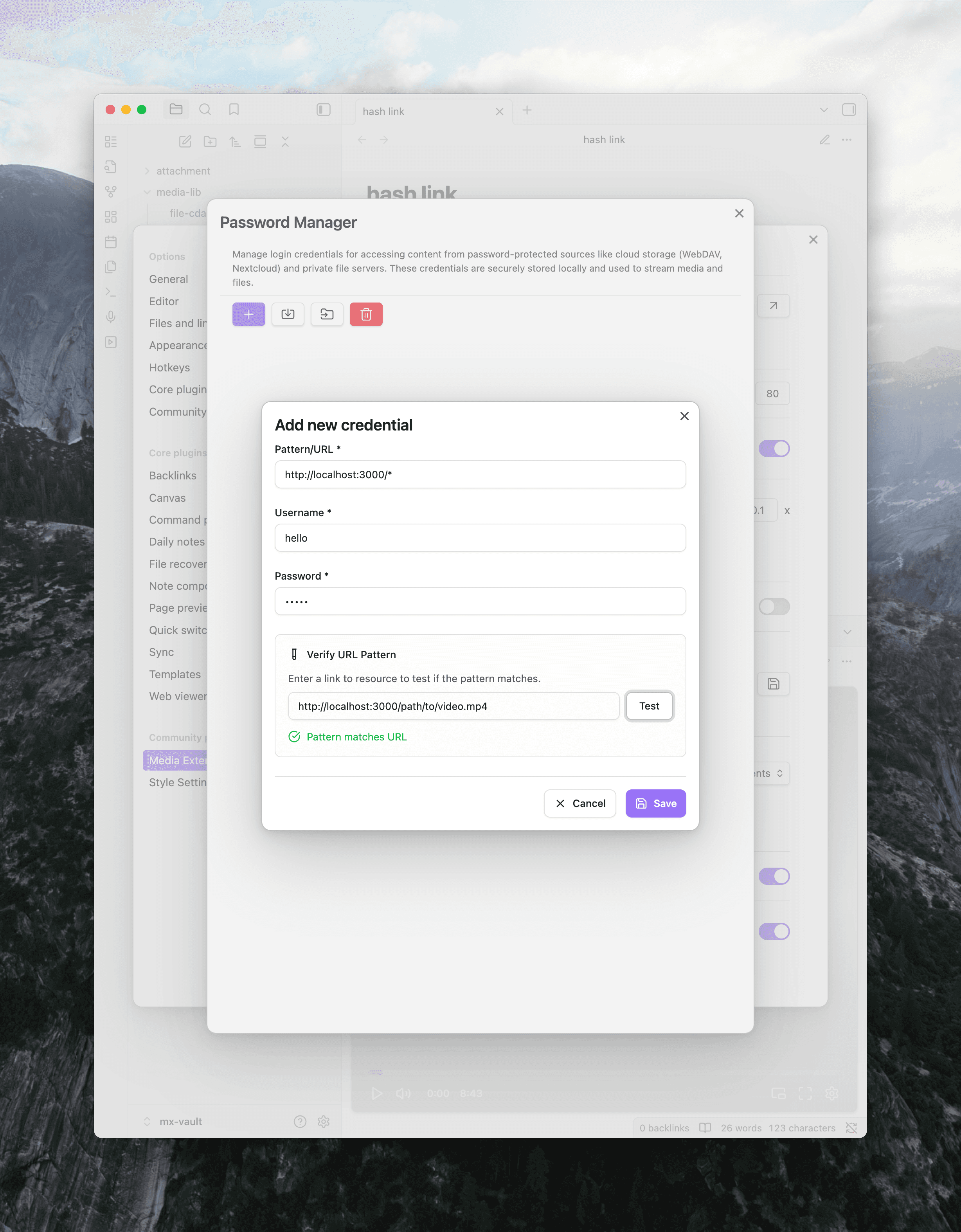
Media Extended sends the stored credentials automatically when the domain matches. You only need to add them once.
The password manager handles HTTP authentication for self-hosted servers like WebDAV, Nextcloud, and personal NAS devices. It does not handle login for streaming platforms like YouTube or Bilibili — use the web viewer's login flow for those.
The password manager requires the main daemon. If you haven't set it up yet, follow How to Set Up the Main Daemon.
See also
- Supported Formats — video, audio, and subtitle formats that Media Extended can play
- Set Embed Width and Height — control the size of media embeds in your notes