Record Timestamps During Recording
Drop timestamp placeholders while recording audio. They turn into clickable links once the recording saves.
You can drop timestamp placeholders into your notes while recording audio. When the recording saves, each placeholder turns into a clickable link that jumps to that moment in the file.
For background on how placeholders work, see the Recording timestamps section on the Timestamps page.
Prerequisites
- Obsidian's Audio Recorder core plugin is enabled. Go to Settings > Core plugins and turn on Audio recorder. See the official Obsidian documentation for details.
- A hotkey assigned to
Take timestamp on current recording. This command has no button in the UI, so a hotkey is the only way to use it. See Commands for the full list of timestamp commands.
Set up the hotkey
- Open Settings > Hotkeys
- Search for
Take timestamp on current recording - Click the button and press your desired key combination
Record with timestamps
Start recording
Start a recording with Obsidian's Audio Recorder and open the note where you want your timestamps.
Take timestamps
Press your hotkey whenever you want to mark a moment. Each press inserts a %%REC_...%% placeholder at your cursor.
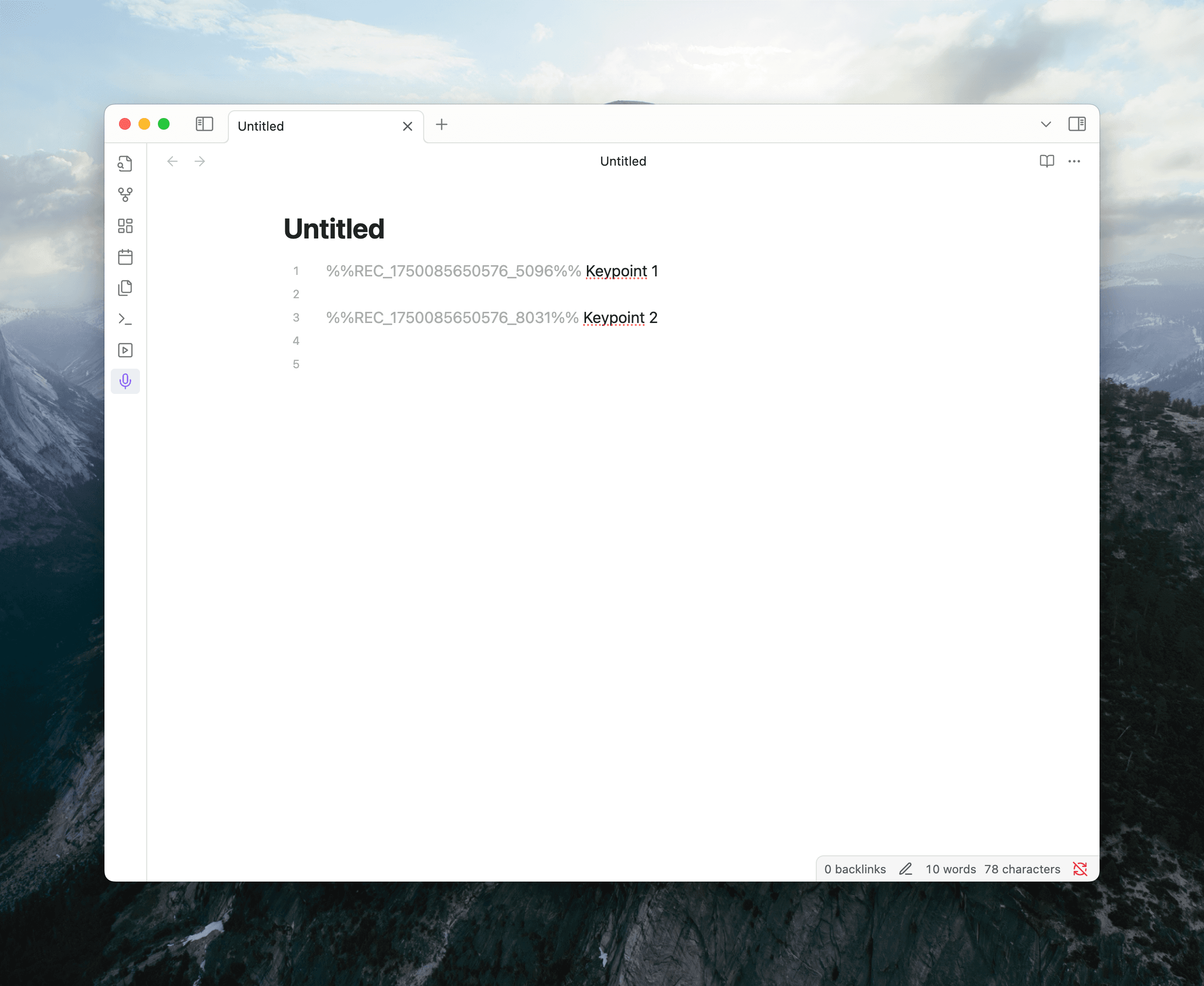
Keep typing between timestamps. The placeholders don't interfere with your notes.
Stop recording
Stop the recording. Obsidian saves the audio file to your vault, and every placeholder is replaced with a timestamp link to the saved file. If you pressed the hotkey 5 seconds in, the placeholder becomes a link like 00:05 that opens the recording at that moment.
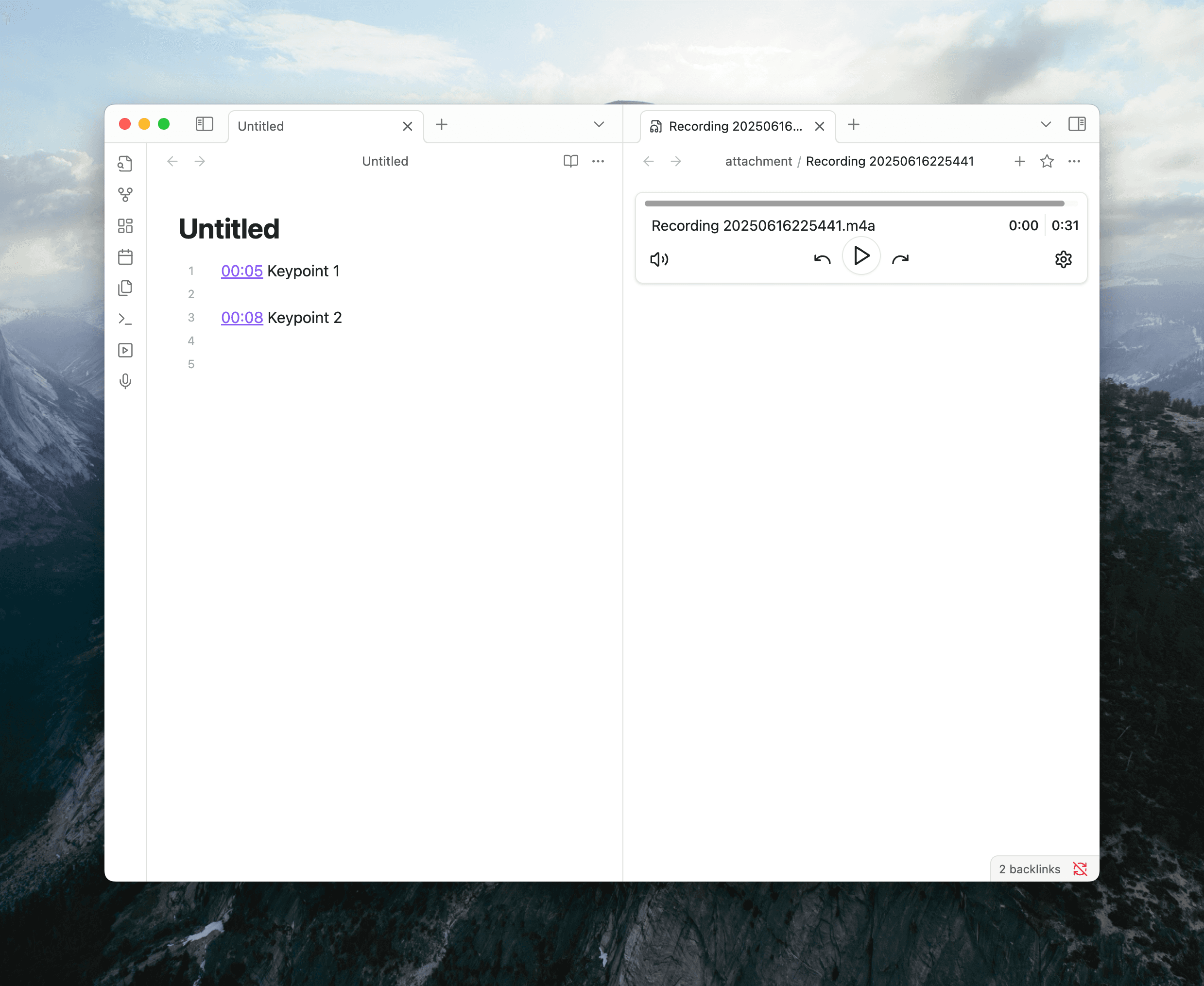
Click any link to open the recording and jump to that point.
Keep the note open in Live Preview mode while recording. If you close the note before the recording saves, the placeholders can't be replaced with real links.
See also
- First Timestamped Note — tutorial for taking timestamps during playback
- Template System — customize the format of inserted timestamps
- Commands — all timestamp and clip commands