Add a Subtitle to Media
Link a subtitle file to your media so you can read, search, and navigate it in a transcript view.
You have a subtitle file (.srt, .vtt, .ass, or .ssa) and want to connect it to your media.
For YouTube and other hosted video subtitles, see Download YouTube Subtitles instead.
Match the filename
The simplest approach. Place your subtitle file in the same folder as the media file and give it the same base name.
For example, if you have lecture.mp4:
Lectures/
├── lecture.mp4
└── lecture.srt
The plugin detects the match and loads the subtitle automatically when you open a transcript view. You don't need to set anything up.
To indicate the language, add a two-letter ISO 639-1 code before the extension — for example, lecture.en.srt or lecture.fr.vtt. See Transcript & Subtitle for the full detection rules.
You can have multiple subtitle files for the same media. They all appear as available tracks in the transcript view.
Import from a file or URL
Use the import dialog when the subtitle doesn't share a name with the media file, or when it's hosted at a remote URL.
From a local file
- Open the media in a player
- Click at the top-right of the player pane
- Select Add subtitlefrom local file
- Pick the subtitle file from the file picker
- Confirm or edit the language, label, and default setting in the metadata dialog
- Click Import
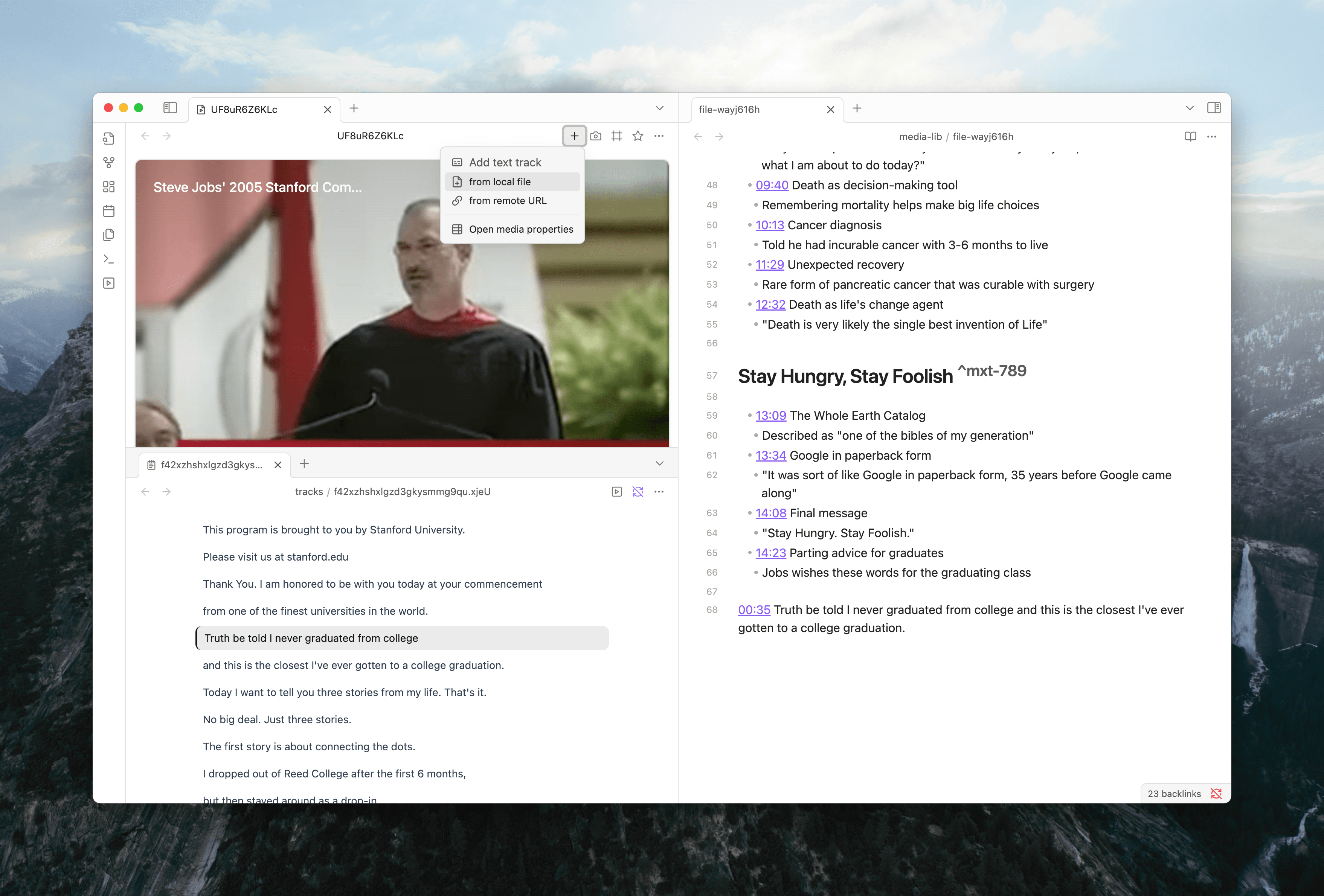
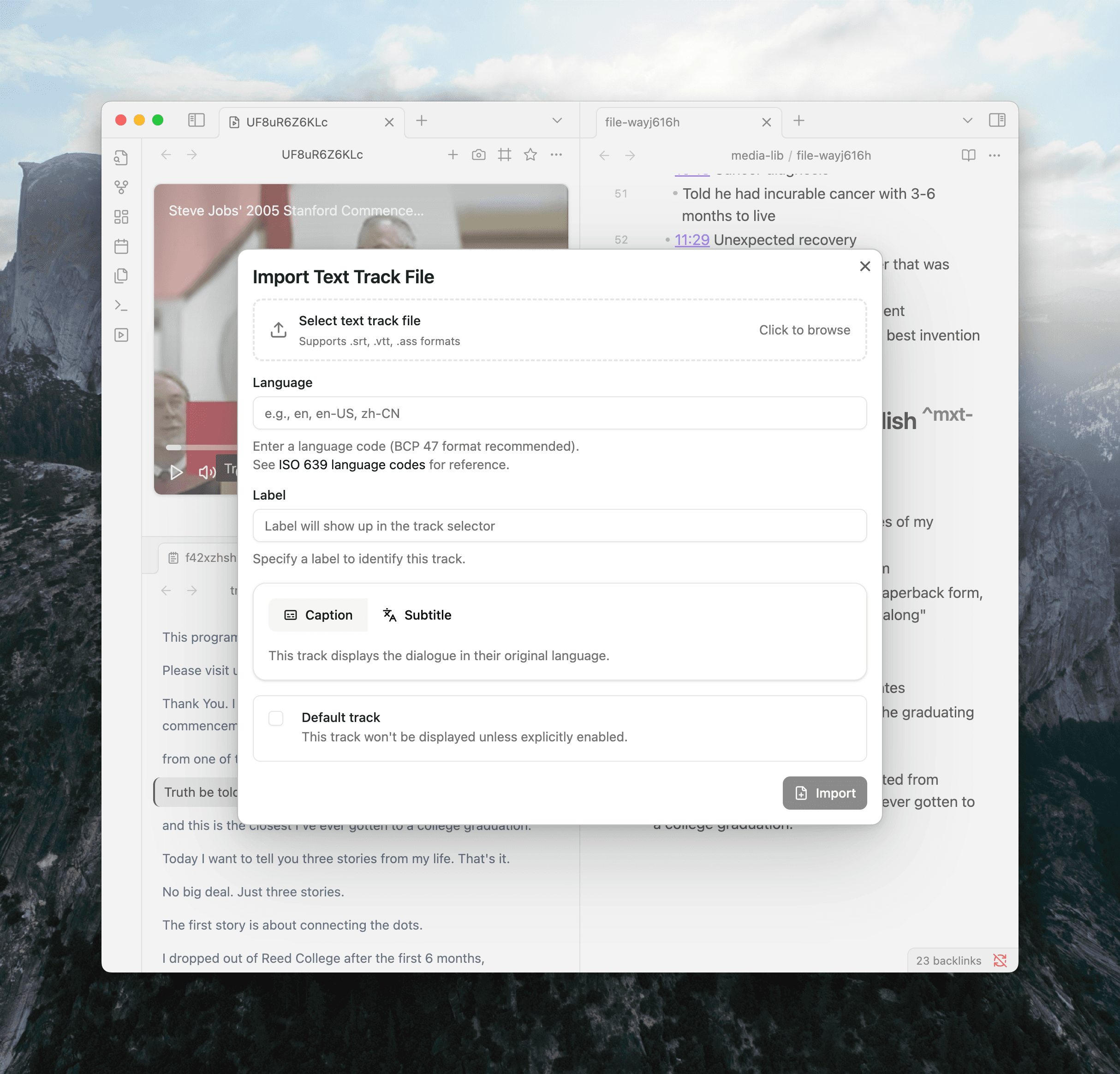
The plugin copies the file into your vault's attachment folder and links it in the media note's frontmatter. A transcript view opens with the new track.
From a remote URL
- Open the media in a player
- Click at the top-right of the player pane
- Select Add subtitlefrom remote URL
- Paste the subtitle URL
- Confirm or edit the language, label, and default setting in the metadata dialog
- Click Import
The plugin downloads the file into your vault and links it in frontmatter. If the URL points to a format the plugin can't detect from the filename, set the format in the metadata dialog.
After import
The track loads automatically next time you open the media. If you have several tracks, you can switch between them in the transcript view.
See also
- Transcript & Subtitle — how tracks are stored, resolved, and displayed
- Subtitle Track Properties — hash parameters for language, label, and default status
- Read Along with a Transcript — tutorial for navigating and quoting from transcripts
- Supported Formats — accepted subtitle file formats