The big stuff in v4.2: a Media Library that tracks your media as regular notes with a Bases view for browsing them, Web Viewer integration so you can take notes against YouTube (and a few other video sites) without leaving Obsidian, and a transcript view that finally reads like prose instead of subtitle lines. The docs have been rewritten alongside it.
Read the upgrade notes first, there are a couple of things to do before everything else makes sense.
Before you upgrade
v4.2 needs Electron 39.0.0 or newer (Obsidian installer 1.11.4+) for the secured cookie store the web viewer integration relies on, and for the main daemon to load. If your installer is older, you'll see a notice at startup. Updating from inside Obsidian doesn't change the runtime — download a fresh installer from obsidian.md and reinstall. More on installer updates.
Main daemon installs separately
The main daemon used to ship with the plugin. It doesn't anymore. You'll get a prompt to install it on first launch; if it doesn't show up, run Open main daemon setup wizard from the command palette, or open obsidian://mx-main-daemon-setup. Without the daemon you lose quality lock, audio track selection, subtitle download, screenshot capture, and web viewer integration. If installation gets stuck, the setup guide has a manual fallback.
Snippet vs plain inserts
The old insert commands got renamed: Take timestamp is now Insert timestamp snippet to note, Insert screenshot to note is now Insert screenshot snippet to note. They still run through your template and land as a block on the next line:
I love this part
- ![[screenshot.jpg|Never Gonna Give You Up 3:45|50]] [3:45](video.mp4#t=3:45)
Two new commands, Add timestamp to note and Add screenshot to note, skip the template and write just the link or embed at the cursor. They follow the Insert location setting and leave selected text alone:
I love this part ![[screenshot.jpg|Never Gonna Give You Up 3:45]]You'll find all of these in the editor's right-click Media submenu and the command palette. Existing hotkeys and template values carry over. The Inserting timestamps and Capture Screenshots pages walk through both styles.
Transcript tabs default to paragraph mode
Subtitle tabs now open in paragraph (transcript) mode by default. To go back to one cue per line, set Settings → Transcript → Default view for subtitle tabs to Subtitle (one cue per line). The mode is also a per-tab toggle in the tab header and pane menu.
Updated documentation
The v4 docs were rewritten this cycle. Six new tutorials cover the workflows most people actually run into:
- First Timestamped Note for getting started
- Organize with Media Library for the new library view
- Notes with the Web Viewer for note-taking against video sites
- Read Along with a Transcript for downloading and quoting subtitles
Concept pages, focused how-to guides, and reference material sit next to the tutorials. The full table of contents is at /docs/v4.
Media Library
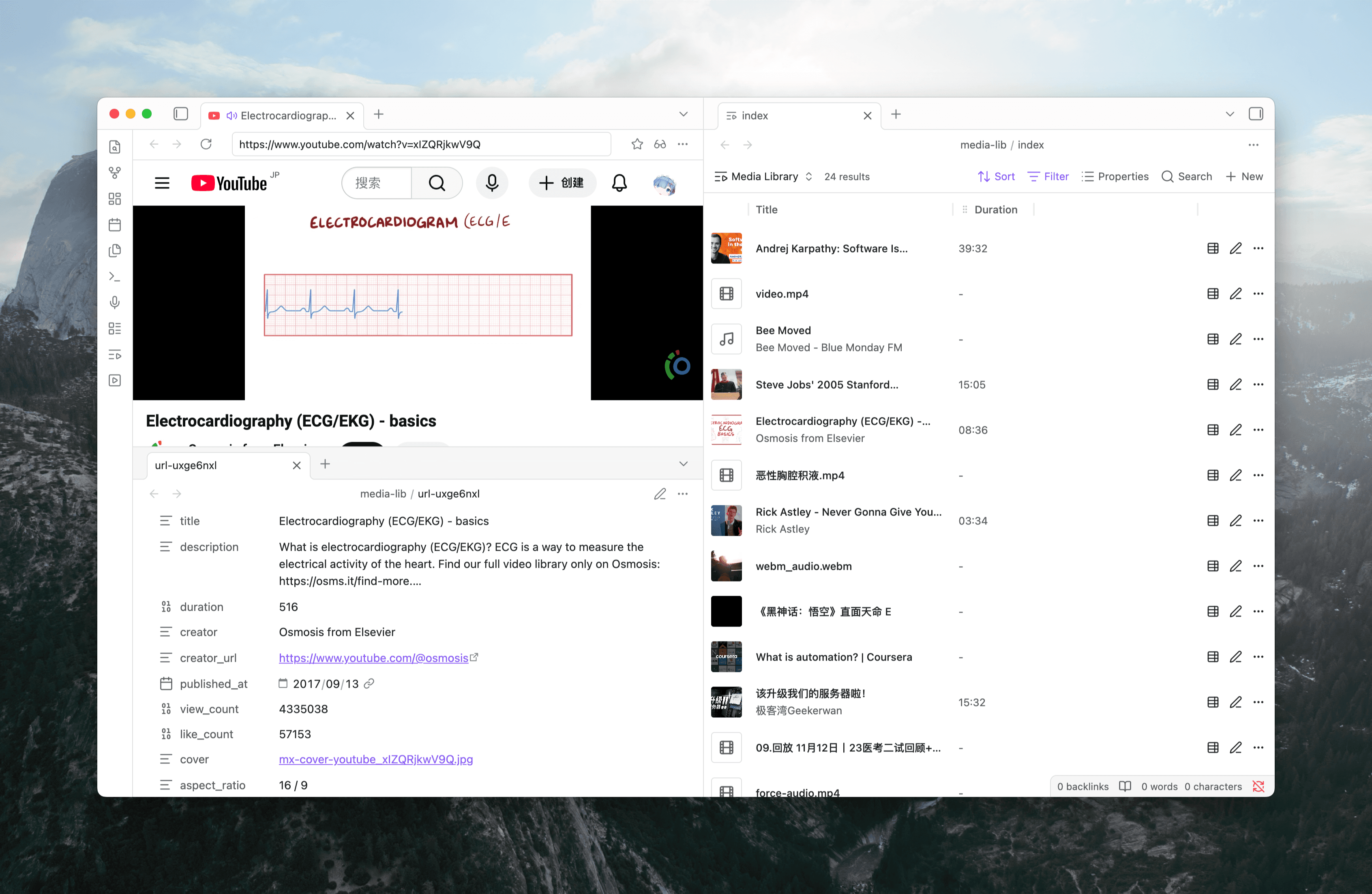
Media notes now have a browsable Bases view. Search, filter, sort, configure columns, and attach cover art. Open it from the ribbon button or the Open media library command.
Adding to the library fills in metadata for you. Media notes created from a YouTube embed (via Add to library or Open media note) come pre-populated with the video's title, description, creator, duration, cover image, tags, and view count.
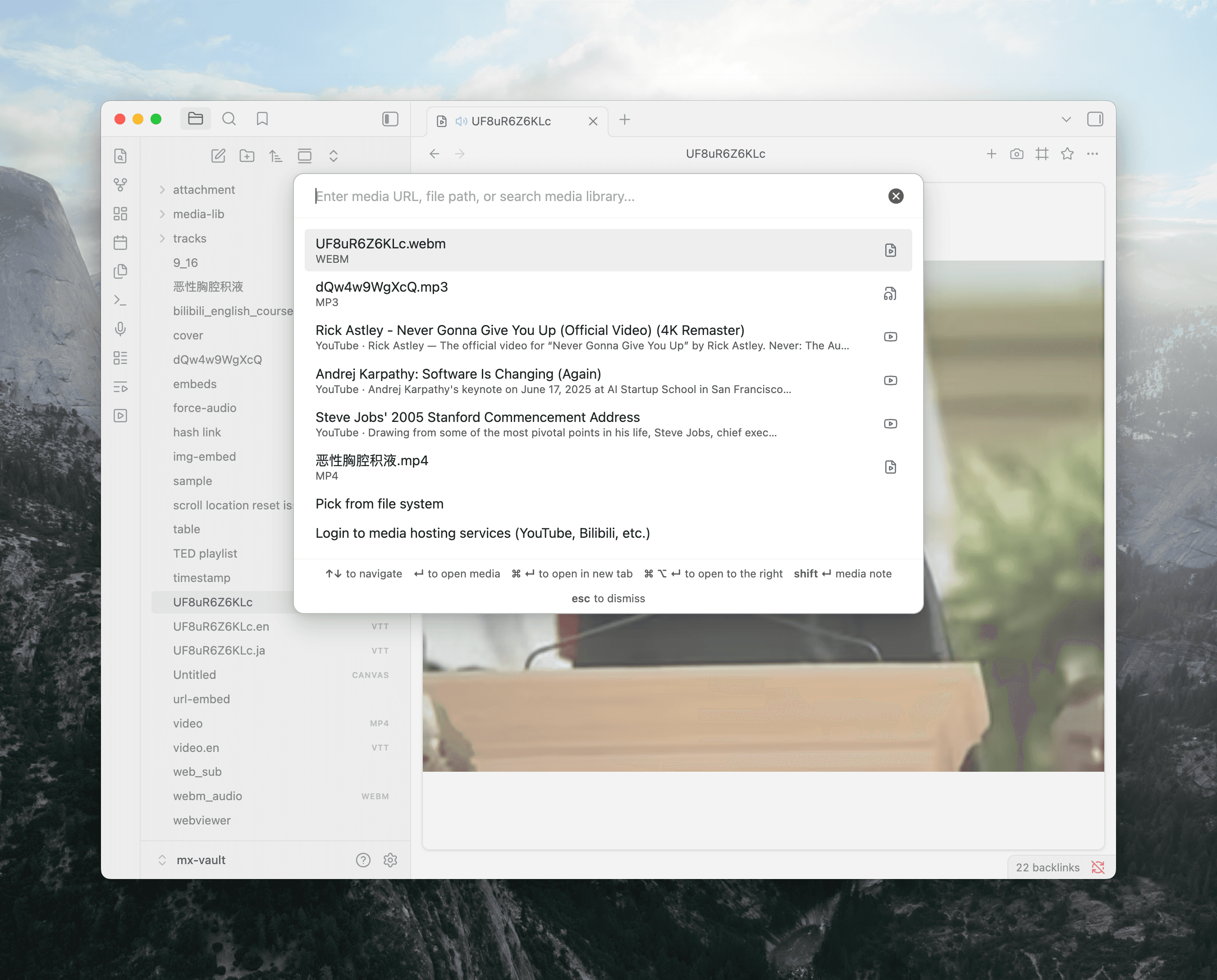
The media quick switcher (command renamed from Open external media to Open media quick switcher) now reads from the library and your recent play history. Fuzzy search surfaces media notes alongside your play history, including pages you've watched in Obsidian's web viewer with their titles captured automatically.
You'll need Obsidian 1.10.0 or later for Bases support. The Organize with Media Library tutorial has the full setup.
Web Viewer integration
Install the main daemon and pair it with Obsidian's web viewer plugin, and any video site you load inside the viewer picks up Media Extended's controls: timestamps, screenshots, transcript download, all the regular note-taking commands.
Sites that work: YouTube, Vimeo, Coursera, bilibili, Baidu Pan. Site-specific bits worth knowing about:
- YouTube: download the transcript from the more options menu, lock playback quality in settings.
- Coursera: download the transcript from the more options menu; manually downloaded subtitles auto-import.
- bilibili: download the transcript when logged in, and turn off danmaku globally if you want.
The YouTube embed player (the iframe-based one inside notes) was updated at the same time. Quality selection, audio track selection — including auto-dubbed tracks — and transcript download work there too.
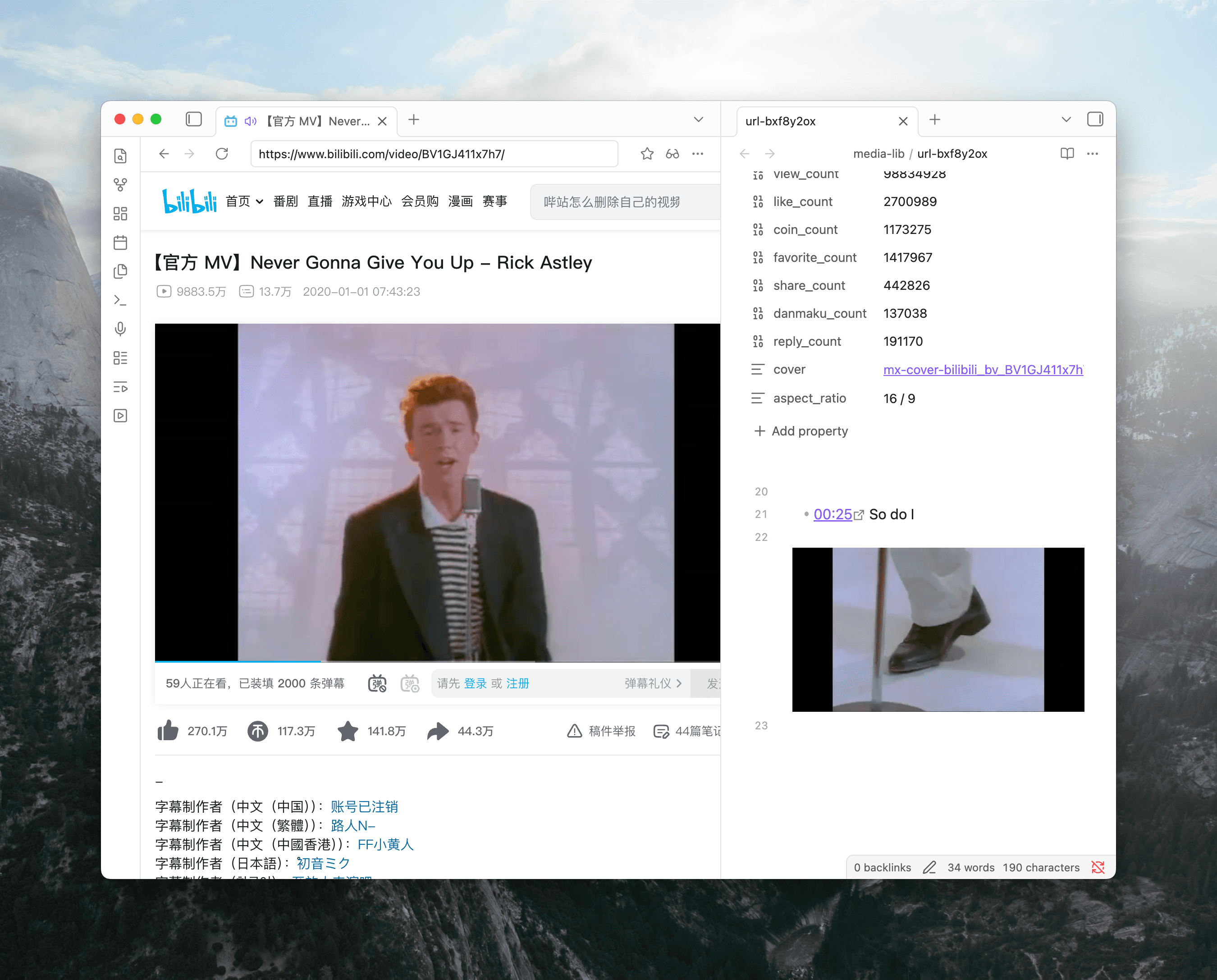
Tab headers now show a speaker icon when a web viewer tab is playing media, and a muted-speaker icon when audio is off. You can right-click any web viewer tab from anywhere in your workspace to toggle mute, without bringing the tab forward first. The menu gives you the choice of muting just the active player or the whole browser tab, which is handy when an off-screen ad starts up.
Setup walk-through: Set Up Web Viewer.
Transcript
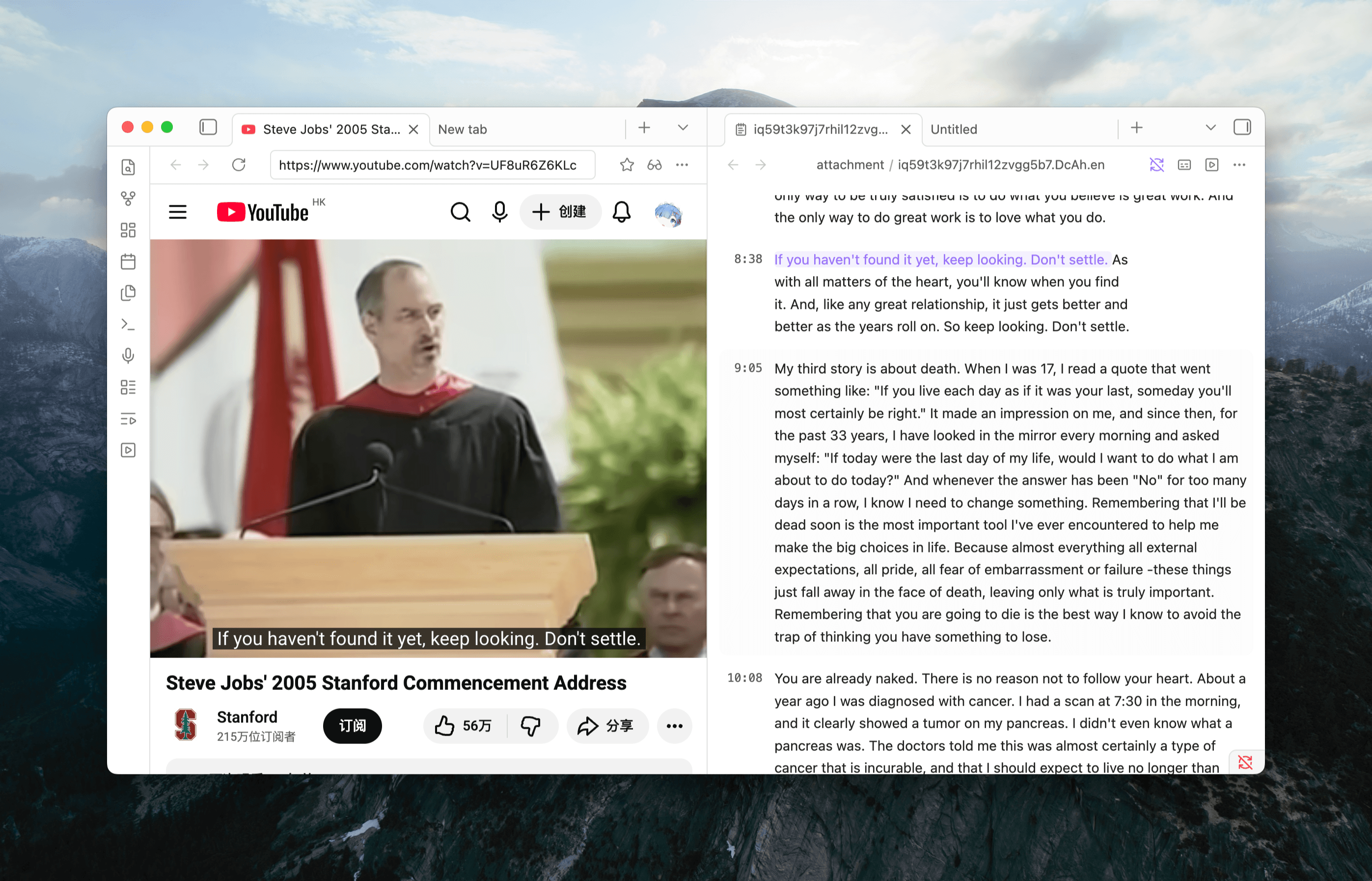
The new transcript mode merges cues into paragraphs. Each paragraph carries a clickable timestamp, and playback auto-scroll follows paragraphs instead of jumping line by line. Pasting a selection into a note still produces a timestamped link, same as the cue layout.
Three per-tab toggles in the tab header and pane menu: switch paragraph vs cue view, show or hide the timestamp gutter, and turn on word-level highlighting that tracks the spoken word during playback.
Transcript sync runs independently of the player's subtitle toggle. You can keep subtitles off in the player and still use the transcript to follow along; paragraph highlighting, auto-scroll, and word highlighting all work either way.
Transcript downloads are part of v4.2 too. With the web viewer integration set up, you can pull a subtitle file straight from YouTube, Coursera, or bilibili (logged in) into your vault from the more options menu. Downloaded transcripts open in paragraph mode automatically.
For the full flow, see Read Along with a Transcript.
More improvements
- Multi-format timestamp copy. The player menu's old "Copy URL with timestamp" is now a Copy timestamp as submenu with seven formats: time only, URL, rich text link, markdown, plus "(opens in Obsidian)" variants for each link format that route through
obsidian://. - Open media note. A new command, also pinned to the media view's pane menu, reveals the linked note for whatever you're currently watching and creates it if it doesn't exist yet. Opens in a side split by default, matching Add media note to library and Shift+Enter in the media quick switcher.
- Auto-open media note when inserting blocks. Inserting a screenshot snippet or media clip embed used to fail silently when no note was open. Now the linked media note opens (or is created) as a fallback and the insert lands there. Same target as the Open media note command above.
- Editor Media context menu. Right-clicking in the editor while a media view is open shows a Media submenu with the timestamp, screenshot, clipped screenshot, and media clip embed actions, including the snippet variants.
- Clickable screenshots. A new
{{SCREENSHOT_LINK}}placeholder for the screenshot snippet template wraps the embed in a link. Clicking the screenshot in your note seeks the player to the moment it was captured. - Search inside transcript tabs. Press Ctrl/Cmd+F (or use Find in the pane menu) to search the active transcript. Auto-scroll pauses while search is open and snaps back when you close it.
- Click-to-open media from a transcript. Clicking a timestamp in a transcript tab that isn't synced to a player opens the linked media file at that position, using whatever link-click behavior you've configured.
- More split options for link clicks. Link click behavior and Alt-click behavior settings now include New pane on the top and New pane on the left, alongside the existing right and bottom split options.
Bug fixes
- Screenshot saves now create the target folder when it doesn't already exist (#524).
- YouTube embeds no longer force the English audio track on videos that ship with several.
- Audio players inside Dataview table cells no longer collapse to zero width (#597).
- Internal media embeds rendered by Dataview (and other plugins that re-render markdown) now show up instead of staying blank.
- The hash editor no longer wipes the file path or URL when you save an embed that didn't have a hash before.
- The hash editor's autoPlay toggle defaults to off for embeds, matching how they actually open.
- Modifier-click and alt-click in the media library view now follow your link click behavior settings (#608).
- Invalid clip ranges no longer produce media URLs with
InfinityorNaNin the query string. - Switching to a different source inside the same media view no longer leaves the title and layout stuck on the previous media.
- Menu popups now line up with the button that opened them.
Renamed commands
A handful of commands got new labels to better match what they actually do. Command IDs and hotkeys are unchanged, so existing bindings keep working. Only the text in the palette and menus is different.
- Open external media → Open media quick switcher. The switcher used to be for URLs and arbitrary files only; it now also surfaces media library entries and recently played items, so the "external" framing was misleading.
- Add to media library → Add media note to library. The command creates a media note that points at the source; the old name suggested it imported or copied the file itself.
- Open related media → Open linked media. Same behavior, clearer wording.
- The clipped-screenshot commands now lead with the verb: Clip and copy screenshot (was Copy clipped screenshot), Clip and save screenshot (was Save clipped screenshot), and Clip and set screenshot as media cover (was Set clipped screenshot as media cover). The new naming lines up with Clip and insert screenshot snippet to note and makes the order of operations clear: you frame the region first, then choose what to do with it.
Help and feedback
The Discord server is the fastest place to get unstuck, questions tend to get answered there. For longer-form threads, GitHub Discussions has a Q&A category for issues and an Ideas category for feature requests.